Get started with chatbots
Dialong Chatbots for Creatio lets you build chatbots as regular Creatio business processes. A bot is a special operator: it receives chats through the same routing as your team, replies with messages and buttons, and can hand a chat over to a person or close it.
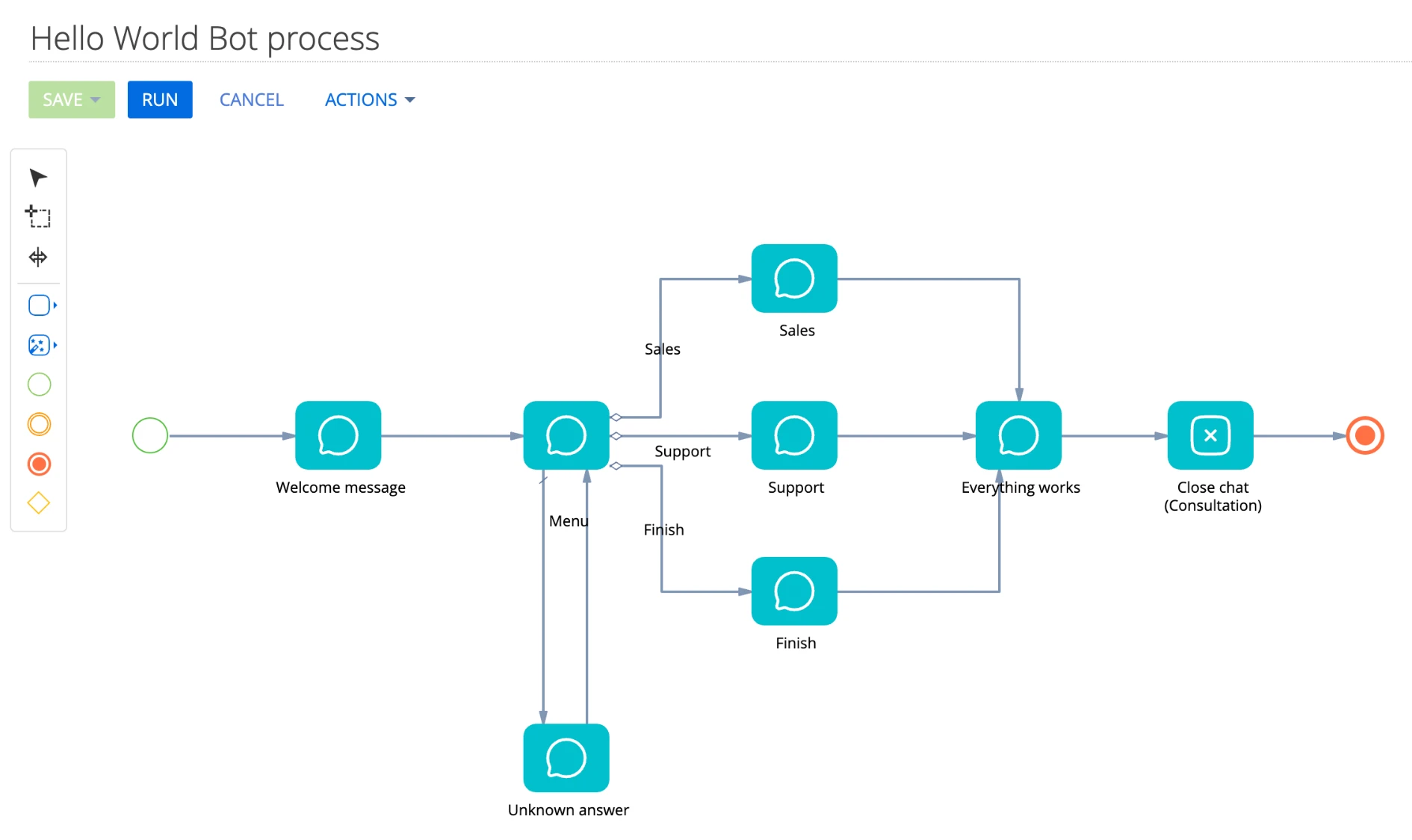
The app comes with a ready-made Hello World Bot process. It doesn’t depend on any data in your system, so you can connect it right after installation and check that the bot answers, the buttons reach the messenger, and every button leads to its own reply.
Before you begin
Section titled “Before you begin”- Dialong Chats for Creatio 1.3.0 or later is installed and set up. See Initial Setup.
- You have a Dialong Chatbots license. Each bot needs one license.
- You have a channel you can write to from your phone. We recommend a separate Telegram channel for testing: it takes a couple of minutes to create. See Connect Telegram.
Step 1 — Install Dialong Chatbots
Section titled “Step 1 — Install Dialong Chatbots”- Install Dialong Chatbots for Creatio from the Creatio Marketplace.
- When the installation is complete, the app appears in the Application Hub next to Dialong Chats for Creatio.
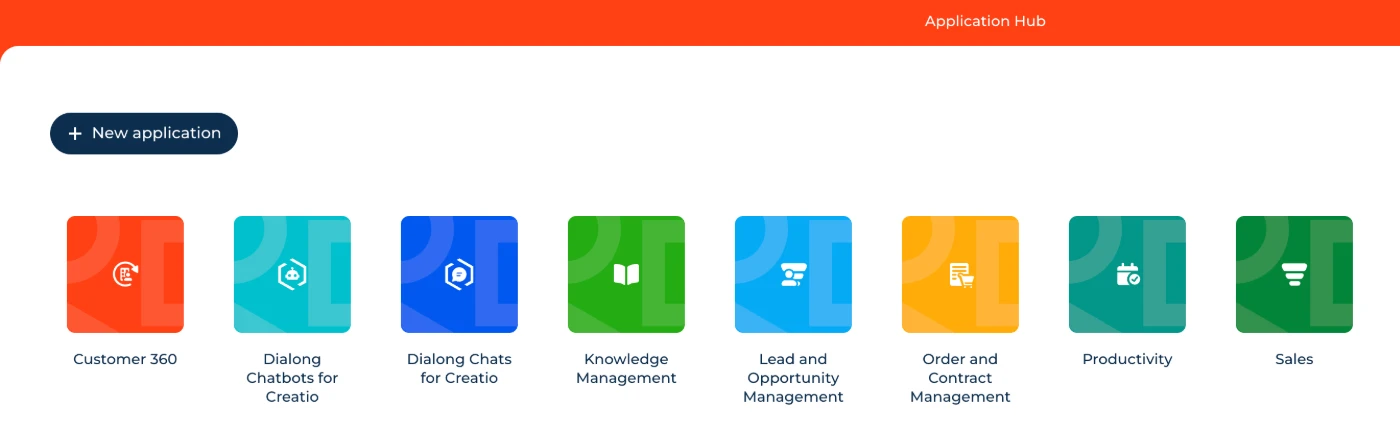
The app adds bot elements to the Process Designer and the Hello World Bot process.
Step 2 — Create a user for the bot
Section titled “Step 2 — Create a user for the bot”Each bot is linked to its own Creatio user. The bot never signs in to Creatio: the user only holds the bot’s license.
- In System Designer, open System users and create a regular user for the bot, for example
Dialong Bot. Technical users can’t be used for bots. - Open the License Manager and assign the Dialong Chatbots license to this user.
Step 3 — Create the bot operator
Section titled “Step 3 — Create the bot operator”-
Select Dialong chats in the left sidebar menu.
-
Click Chat Settings

-
Open the Operators tab and click ✚ next to Operator.
-
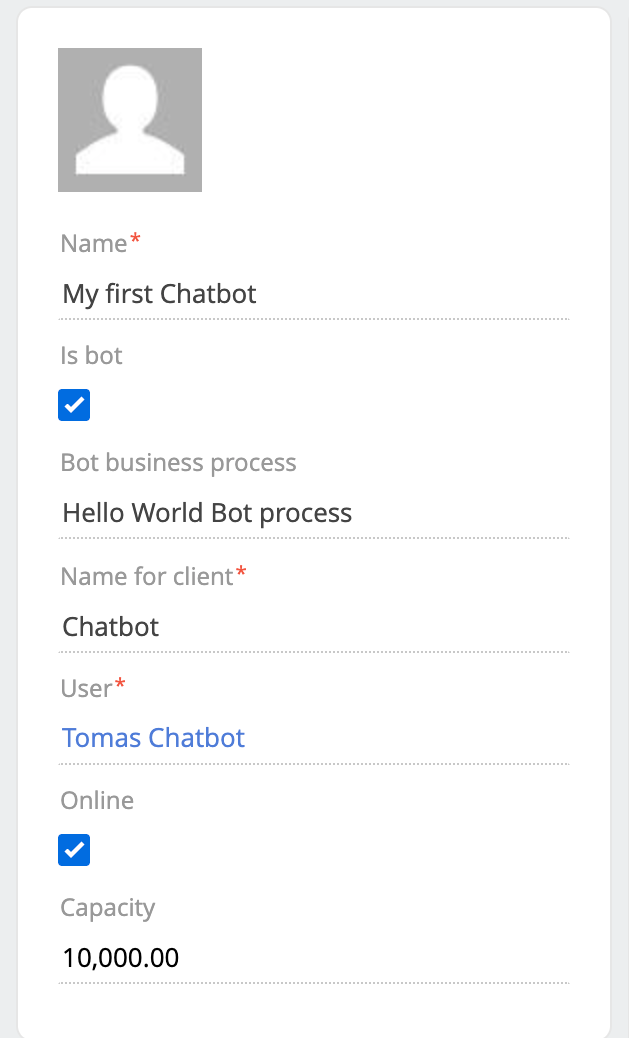
Fill in the fields:
Field Value Name* Internal name of the bot, for example My first Chatbot.Is bot Select the checkbox. The Bot business process field appears. Bot business process Select Hello World Bot process. The bot runs this process in every chat it receives. Name for client* The name clients see if the channel shows operator names, for example Chatbot.User* The user you created in Step 2. Online Select the checkbox. The bot receives chats only while it is online. Capacity A large number, for example 10000. A bot can handle many chats at once. If the capacity is empty, the bot receives no chats. -
Click Save.
Step 4 — Connect the bot to the channel
Section titled “Step 4 — Connect the bot to the channel”- In Chat Settings, open the Channels tab and open your test channel.
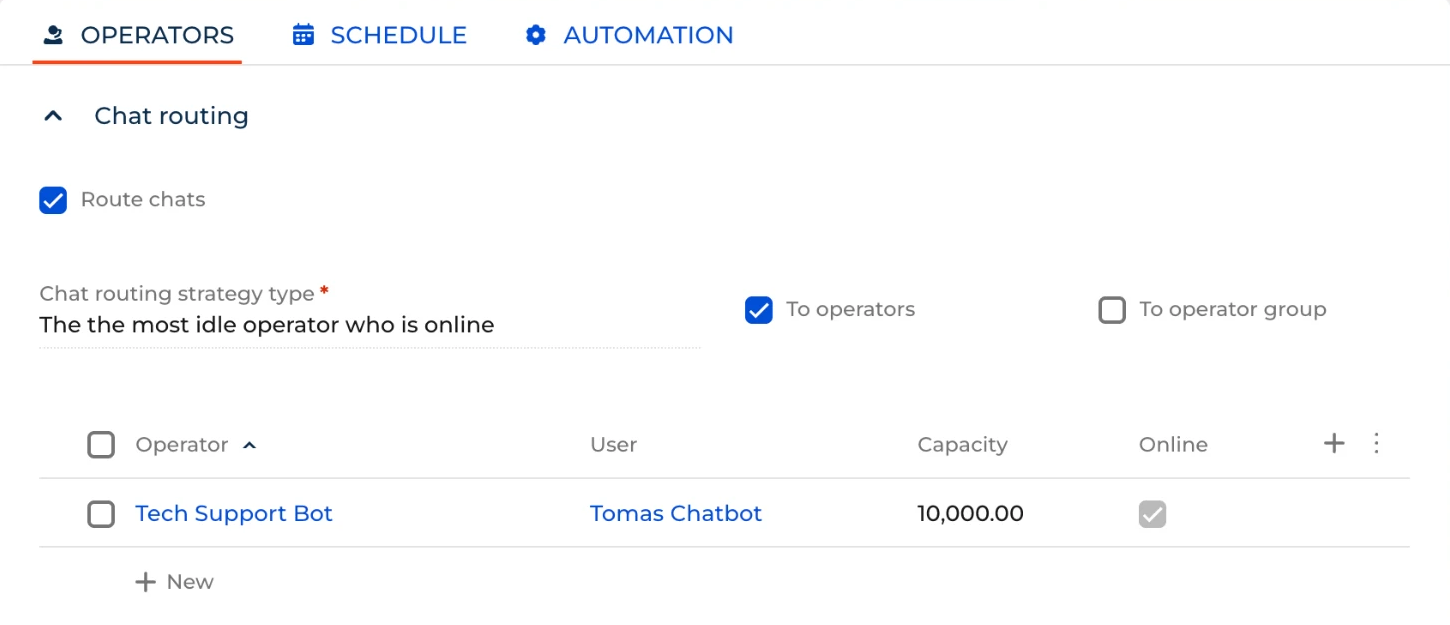
- On the Operators tab of the channel:
- Select Route chats.
- In Chat Routing Strategy Type, select The most idle operator who is online.
- Select To operators, click ✚ in the operators list, select the bot, and click Select.
- On the Schedule tab, make sure that no day is marked Active, or that the current time is within the working hours. Chats that arrive outside working hours are not assigned to anyone, bots included.
- Click Save.
Step 5 — Talk to the bot
Section titled “Step 5 — Talk to the bot”-
Open the channel in your messenger. For Telegram, open your bot from BotFather and click Start, or send any message.
-
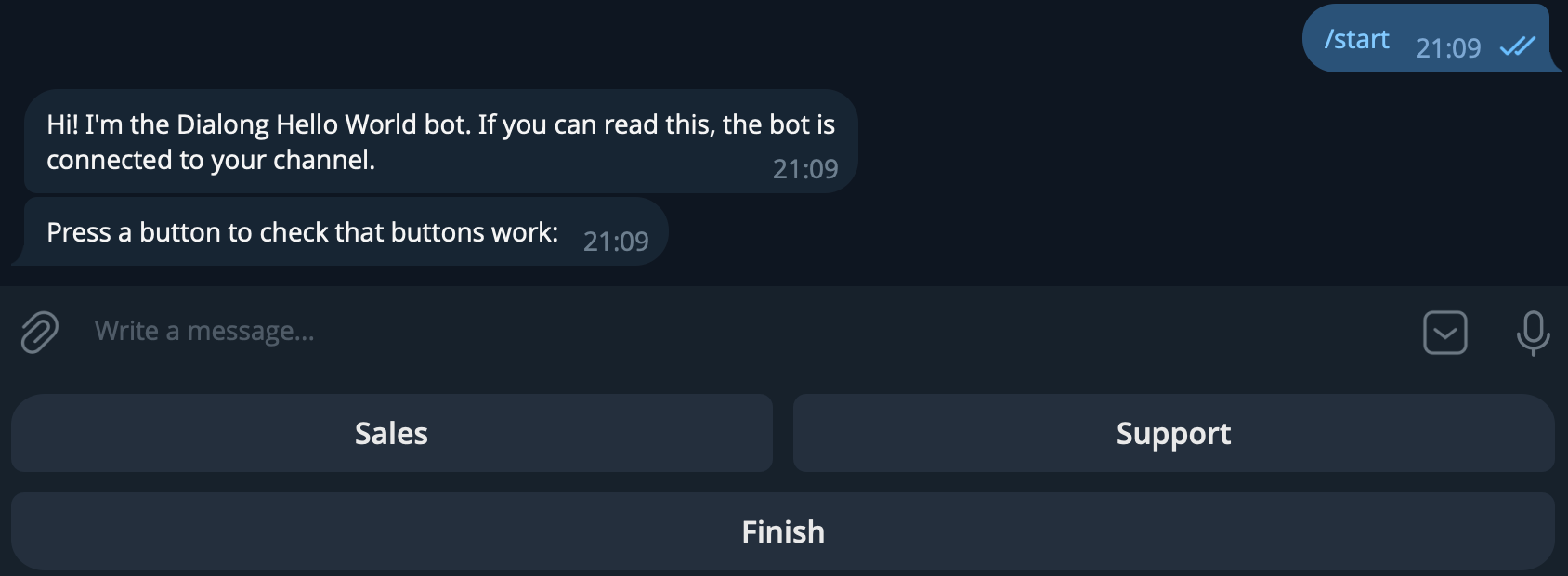
The bot greets you and shows a menu:
-
Type any text instead of pressing a button. The bot replies that it only understands buttons and shows the menu again.
-
Press any button. The bot confirms your choice, tells you that everything works, and closes the chat.
To try another button, write to the channel again. A new chat starts, and the bot greets you from the beginning.
Step 6 — See the chat in Creatio
Section titled “Step 6 — See the chat in Creatio”- Open the Dialong chats section and open the latest chat of your test channel.
- The Messages tab shows the whole conversation.
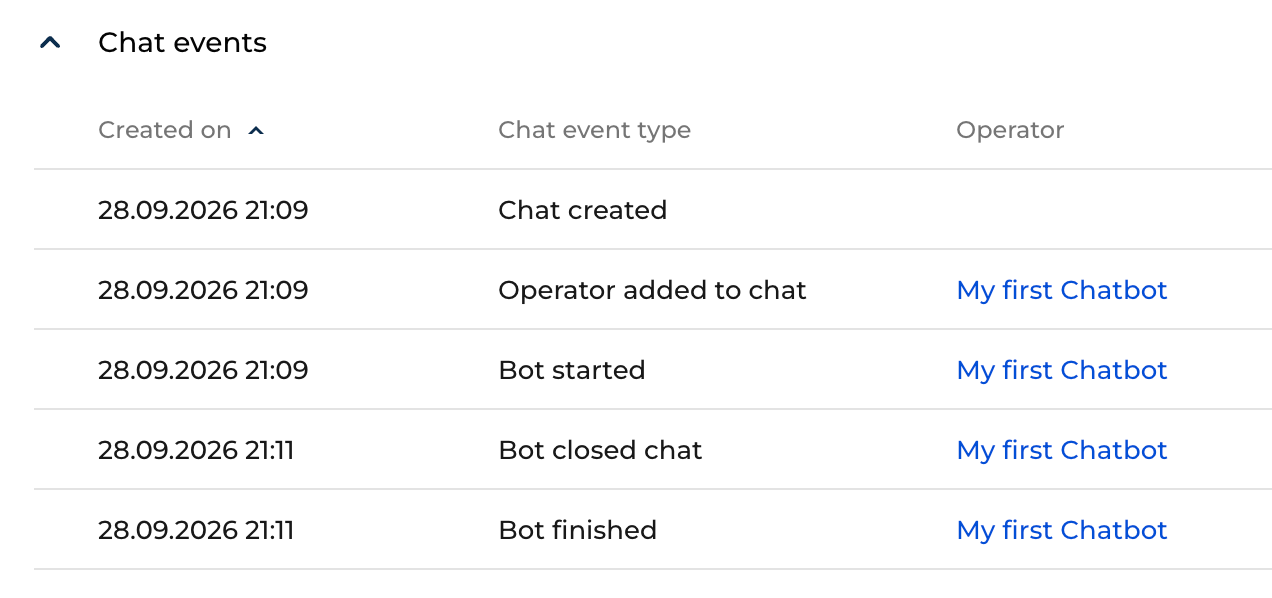
- On the Analytics tab, the Chat events panel shows what the bot did. After the test, you’ll see Bot started, Bot closed chat, and Bot finished.
| Event | Meaning |
|---|---|
| Bot started | The bot received the chat and started its process. |
| Bot handed over | The bot passed the chat to people. |
| Bot closed chat | The bot closed the chat. |
| Bot finished | The bot’s process reached its end. |
| Bot failed | The bot stopped because of an error. See Troubleshooting. |
Troubleshooting
Section titled “Troubleshooting”| What you see | What to check |
|---|---|
| The Operators tab of the chat doesn’t list the bot | The bot is Online and has a Capacity. The bot is added to the channel’s operators or to its operator group. Route chats is selected and the strategy is The most idle operator who is online. The current time is within the channel schedule. |
| Your message was added to an older chat | While a chat is open, all your messages in this channel go to it. Close the old chat and write again. |
| Bot failed in Chat events | Open the Dialong logs section: the latest error explains the reason. The most common ones are a bot user without the Dialong Chatbots license and an empty Bot business process field. |
Next: build your own bot
Section titled “Next: build your own bot”When the Hello World bot works, create your own scenario.
-
Create a new business process instead of changing Hello World Bot process: it is part of the app. Use it as a sample.
-
Add three process parameters of the Unique identifier type:
ChatId,OperatorId, andClientId. The bot fills them when a chat starts, and bot elements pick them up automatically. -
Build the scenario from bot elements. In the element panel of the Process Designer, their names start with Bot:.
Element What it does Bot: send message Sends a message, with buttons if needed. With Wait for answer selected, the process waits for the client’s reply. Draw a conditional flow for each button, select the button in the flow’s properties, and add a default flow for any other answer. Bot: wait for message Waits for the client’s next message without sending anything. Bot: hand over to operator Removes the bot from the chat and passes the chat to people: by the channel’s routing strategy, to an operator group, or to a specific operator. Completed successfully is false when nobody is free and the chat waits in the queue. Bot: close chat Closes the chat with the selected close reason. -
End every branch with Bot: hand over to operator or Bot: close chat. If the process ends any other way, the bot stays in the chat and stops answering.
-
Select your process in the Bot business process field of the bot operator.