
WhatsApp Templates
WhatsApp enforces a 24-hour session window: after a customer sends a message, you can reply freely for 24 hours. Once the window closes, you can only reach the customer by sending a pre-approved template message.
Templates are used to:
- Re-engage customers after the 24-hour window expires
- Send proactive notifications — order confirmations, appointment reminders, shipping updates
- Start conversations when the customer hasn’t messaged first
Categories
Section titled “Categories”WhatsApp classifies templates into three categories, each with its own approval criteria and pricing:
| Category | Purpose | Examples |
|---|---|---|
| Utility | Transactional updates related to an existing interaction | Order confirmations, shipping notifications, payment receipts |
| Marketing | Promotional messages and offers | Product announcements, discounts, newsletters |
| Authentication | One-time passwords and verification codes | Login verification, two-factor authentication |
Structure
Section titled “Structure”Each template can include the following components:
Header (optional)
Section titled “Header (optional)”The top section. Can be:
- Text — a short title or heading
- Image — JPEG or PNG
- Video — MP4
- Document — PDF
Body (required)
Section titled “Body (required)”The main content. Supports plain text, basic formatting (bold, italic, strikethrough, monospace), and variables — dynamic placeholders like {{1}}, {{2}} that are filled in at send time (e.g., customer name, order number).
Footer (optional)
Section titled “Footer (optional)”A short line of muted text at the bottom. Often used for disclaimers.
Buttons (optional)
Section titled “Buttons (optional)”Interactive elements at the bottom:
- Call to Action — opens a URL or dials a phone number
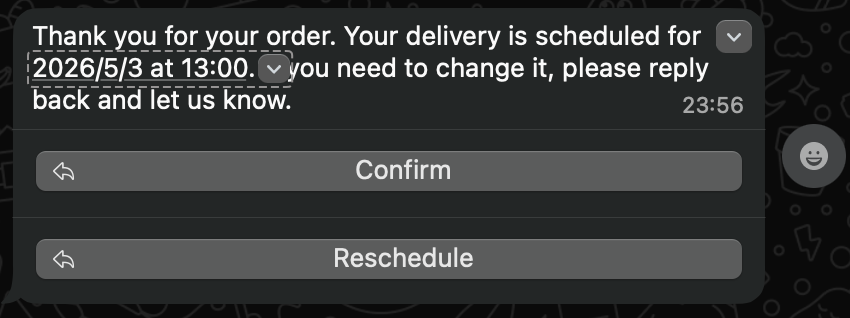
- Quick Reply — predefined response options the customer can tap
Approval
Section titled “Approval”Every template must be reviewed and approved by Meta before it can be used.
How to submit a template
Section titled “How to submit a template”- Go to the Twilio Console
- Navigate to Messaging → Content Template Builder
- Click Create new
- Fill in the template name, language, and content type (e.g., Text or Media). Content type describes the message layout — it is not the same as a WhatsApp category
- Complete the body, variables, and any optional sections (header, footer, buttons)
- Submit the template for WhatsApp approval. During submission, Twilio will ask you to choose the WhatsApp category (Utility, Marketing, or Authentication)
Approval statuses
Section titled “Approval statuses”| Status | Meaning |
|---|---|
| Pending | Submitted, awaiting review |
| Approved | Ready to use |
| Rejected | Did not pass review — check the reason and resubmit |
Tips for approval
Section titled “Tips for approval”- Use clear, concise language
- Avoid overly promotional or spammy wording
- Include the correct variable placeholders (e.g.,
{{1}}) where dynamic content will go - Make sure the category matches the template’s actual purpose
- Do not include shortened URLs from third-party services
Quality and Sending Limits
Section titled “Quality and Sending Limits”WhatsApp monitors template quality based on customer feedback. Templates that receive too many blocks or reports will have their quality rating lowered, which can reduce your sending limits.
| Rating | Meaning |
|---|---|
| Green | High quality |
| Yellow | Medium quality — monitor closely |
| Red | Low quality — may be paused or disabled |
Using Templates in Dialong Chats
Section titled “Using Templates in Dialong Chats”When the 24-hour window has expired, operators must send an approved template to resume the conversation. Only Approved templates appear in Creatio — pending and rejected templates are not shown.
Once Meta approves a template in Twilio, it becomes available in Dialong Chats immediately — no separate sync is needed.
For WhatsApp channel setup, see Connect WhatsApp.
Open the template picker
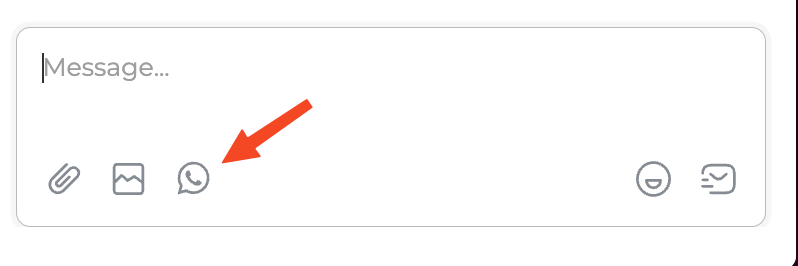
Section titled “Open the template picker”In the chat panel, click the WhatsApp icon in the toolbar below the message input field.
Select a template and fill in variables
Section titled “Select a template and fill in variables”The Send WhatsApp Template dialog lists every approved template for your WhatsApp sender.
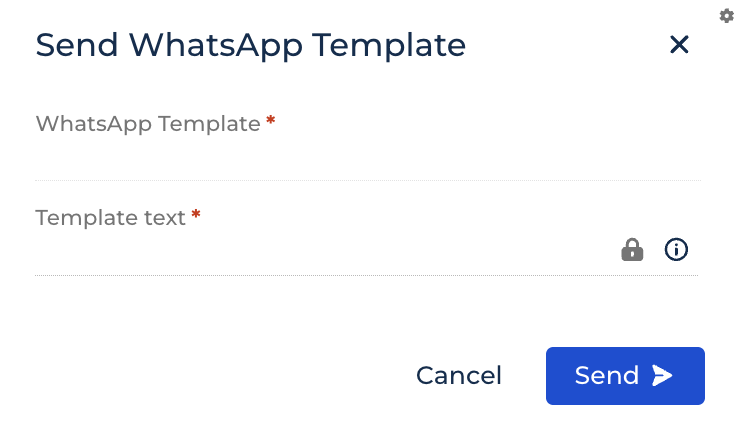
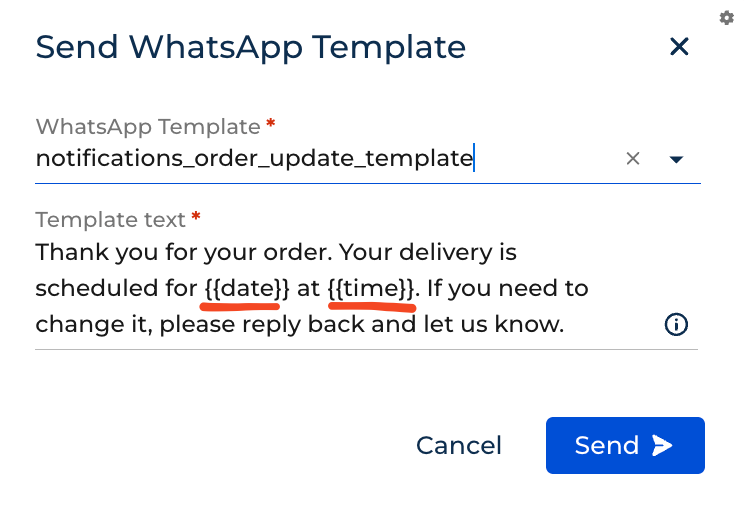
- In WhatsApp Template, choose the template by name
- In Template text, replace each placeholder in curly braces (e.g.,
{{date}},{{1}}) with real values for this customer - Click Send
Message status
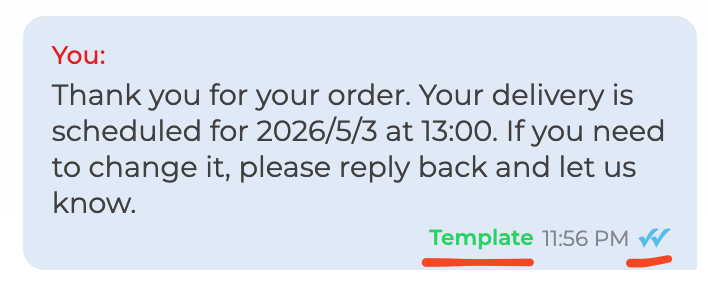
Section titled “Message status”Outbound template messages are labeled Template (green) in the chat panel. A double checkmark indicates the message was delivered and read (when read receipts are enabled).
How the customer sees it
Section titled “How the customer sees it”The customer sees the filled-in text in WhatsApp. If the template includes buttons (quick replies or actions), they appear below the message.
After the customer replies
Section titled “After the customer replies”When the customer responds (or taps a quick reply), a new 24-hour session window opens. During that time, operators can send ordinary messages without templates.